Your workspace
A little orientation goes a long way. GradientArt puts your design in the middle, tools on the left, and the details on the right. You can move between the big picture and the small adjustments without leaving the canvas.
Think of it as three steps: pick something to work on, choose a tool, then fine-tune the result. You don't need to learn every control before making your first design.
Start simple. A single gradient is enough to get a feel for the workspace. Add more layers when you want more depth.
The project header
The header is home to the project name and the actions that manage the whole design. Click the name to rename your current design. The main action button shows Save, Update, or Fork; its Project actions arrow opens the other available actions. Settings holds the description, tags, and canvas dimensions.
Save creates a project; Update saves changes to one you own; Fork makes a separate version of an existing project. After saving, Details View opens the presentation page and Full Screen View shows the artwork without editor controls. New project starts a blank canvas.
These actions depend on whether the project is new, saved, or yours. See Saving and sharing before closing a design you want to keep.
The left toolbar
The toolbar is where you choose how to interact with your design. Transform and rotate tools help you place things; pan and zoom let you take a closer look without changing the artwork itself.
Path tool edits shape geometry, and Text tool edits text directly on the canvas. Select an existing shape or text layer first to edit it. If the current selection isn't the matching type, these tools create a new matching layer. No Tool clears the tool overlay when you just want to look at the artwork.
Choose a tool
Try selecting a layer and switching to Transform. The controls on the canvas let you work visually, while the properties panel gives you a place for precise values. Both are ways of working on the same design.
Undo and redo
Use Undo and Redo in the left toolbar to step backward and forward through your edits. The shortcuts are Command+Z and Command+Shift+Z on Mac, or Ctrl+Z and Ctrl+Shift+Z elsewhere.
While editing a path, Undo and Redo work through that path-editing session. Cancel discards its draft; switching tools commits a valid path. Text has Done instead, and its valid edits apply as you type. The layer type reference covers each tool's finish behavior.
The top and bottom bars
The bar above the canvas follows the tool you're using. Look here for its options rather than searching through every panel.
The bottom bar offers instructions for the current tool. If you're not sure what to drag, click, or press next, it's a good place to look.
Keep these two bars in mind as a pair: the top helps you adjust the tool, and the bottom helps you use it.
The main canvas
This is where your artwork comes together. Use the canvas to judge the whole composition, then zoom in when you want to work on a smaller detail.
Panning changes your view of the workspace. Zooming changes how large it looks on screen. Neither is a replacement for changing the actual size of your artwork.
Choose Pan and drag to reposition the view. Choose Zoom in/out for the zoom controls in the top bar; Reset zoom returns to 100%. To resize the actual design, change Canvas size in Settings.
Keep the big picture in view
After a few close-up adjustments, zoom out again. It's easier to judge spacing, balance, and the relationship between layers when you can see the full design.
The right-hand panels
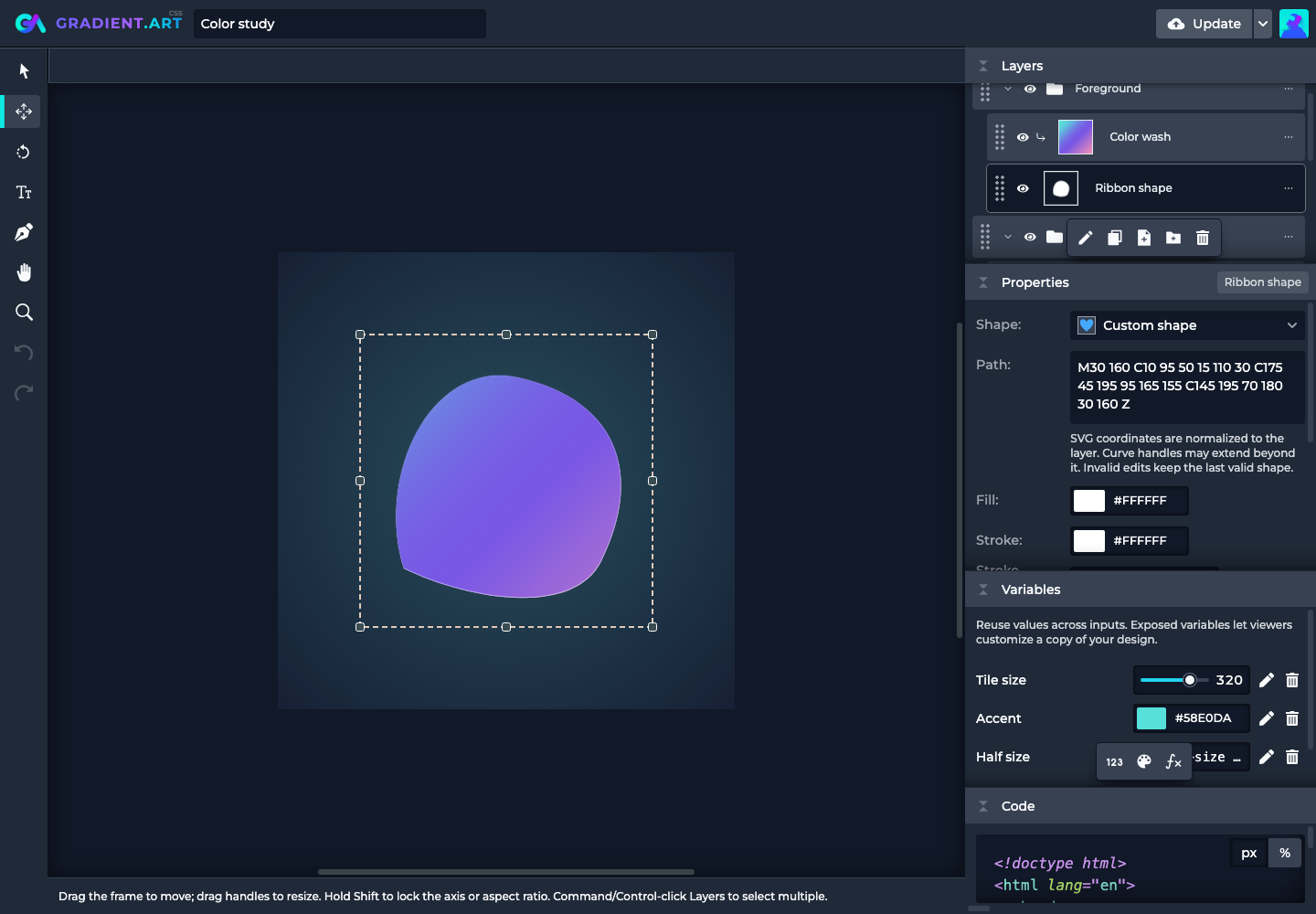
The right side brings together Layers, Properties, Variables, and Code. Each has a different job, so you can move from arranging the artwork to refining it.
- Layers helps you choose and organize the pieces of your design.
- Properties shows the controls for what you've selected.
- Variables lets you connect values across your design.
- Code gives you a view of the generated output.
Drag a panel header to redistribute vertical space, or use its collapse button to tuck it away. Drag the left edge of the panel area to change its width. The editor's right-hand panels are intended for a wider viewport; use a desktop or tablet-sized window when you need the full editing workspace.
For now, start with Layers and Properties. Select a layer, change a value, and watch what happens on the canvas. When you're ready to build a richer composition, get to know layers.