Make a design reusable
A variable is a named value that several inputs can share. Change Accent once and every bound gradient stop follows. Change Tile size and several pieces resize together. Less repetition, more room to experiment.
Expose a few useful controls and the same design becomes a template other people can explore without understanding its entire layer stack.
Supported variable types
Use the three add buttons at the bottom of Variables to choose a type. The type describes the value, not the unit of the property it will control.
Number
A Number stores a numeric value. Optional Min, Max, and Step keep it within useful bounds. Step must be positive; allowed steps are measured from Min when supplied, otherwise from zero.
For example, make Tile size 240, with Min 40, Max 400, and Step 10.
Bound to a width, that value means pixels. Bound to an angle, it means degrees.
There are no separate Length, Percentage, or Angle variable types in the editor.
Color
A Color stores a color and its alpha. Bind it to supported color inputs such as solid colors, gradient stops, or a folder's shadow color. One Accent variable can keep several gradients in the same palette.
Not every color picker supports bindings. Look for the link button rather than assuming a shape's fill or a texture's palette has the same binding controls.
Function
A Function calculates a numeric result from a formula. For example, Half size
with --tile-size / 2 stays at half of Tile size. Bind it anywhere its numeric
result fits, just as you would a Number.
Function values are calculated rather than directly edited. They cannot be exposed as editable controls in Details View; expose their Number inputs instead.
Create and name variables
- Choose Add number variable, Add color variable, or Add function variable in Variables.
- Enter a Label. The editor generates a CSS name below it: Tile size
becomes
--tile-size. - Add a description that explains what changing the control will do.
- Set a value and any numeric constraints, or enter a Function formula.
- Choose whether to Show in project details, then select Create variable.
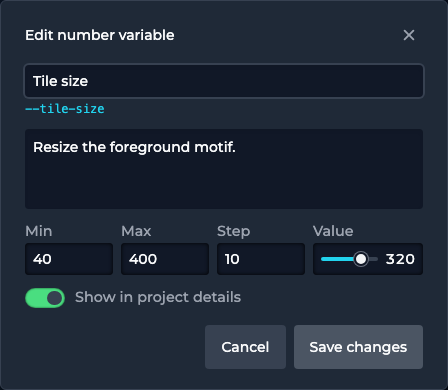
Names must be unique within the project. Labels that normalize to the same CSS name count as duplicates, even if their punctuation differs. The form shows the conflict so you can choose another label. A project supports up to 64 variables.
Bind values to properties
Create Tile size as above, select a layer, and open the link button next to Background width. Choose Tile size. Repeat for height to make a square. Changing the variable now changes both inputs.
Bindings are available for canvas width and height; background position and size; gradient angle, center, and repeat; stop colors and positions; and the supported folder transforms and filters. A binding menu only lists compatible types and values. If a variable is absent, check its current result against the destination's range.
A bound field displays a label or formula rather than a directly editable value. To disconnect it, open the link menu and choose Static value. This restores the property's stored static value, which may differ from the current result.
Formulas
Use a Function variable when several inputs should share a calculation. Use Formula in one input's binding menu when the calculation is only useful there. Both use the same arithmetic language.
For example, a width can use --tile-size, while a neighboring layer uses
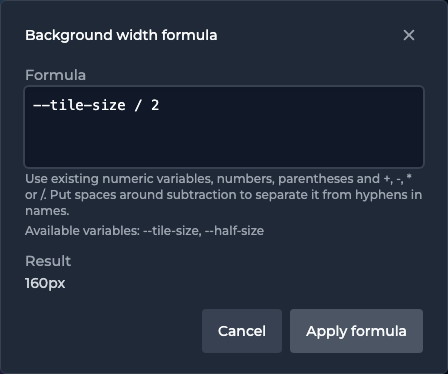
--tile-size / 2. An input formula shows its calculated result with the
destination unit before you choose Apply formula.
References and arithmetic
Use existing numeric-variable names prefixed with --, numeric literals,
parentheses, and +, -, *, or /. Multiplication and division happen before
addition and subtraction; parentheses make the grouping explicit.
--tile-size / 2
(--tile-size - 20) / 2
--tile-size + --gap * 2
The last example also needs a Number variable named Gap. Put spaces around
subtraction: --tile-size - 20, not --tile-size-20, which looks like a variable
name. Use the available-variable list in the form to check spelling.
These aren't JavaScript or spreadsheet expressions. Functions such as Math.sin,
min(), and SUM() are not supported, and colors cannot take part in numeric
arithmetic.
Validation and dependencies
An error below the formula identifies what needs attention. Common causes are a
missing variable, a Color used as a number, division by zero, or a result outside
the target input's allowed range. A canvas width, for example, must be at least
1, even if the arithmetic itself is valid.
Functions can reference other Functions, but dependencies cannot circle back to themselves. If A depends on B, B cannot depend on A. Fix the reference or calculation before applying it; the editor won't accept an invalid binding just because the formula is syntactically complete.
Templates and exposed controls
Keep Show in project details enabled for Number and Color variables you want viewers to adjust. Disable it for internal construction values. Function variables stay calculated and do not appear as editable controls.
Save or Update the project to persist those choices. Projects with exposed controls can appear in Templates, and their Details View gains a Customize panel. A few clear labels and safe ranges make a template much easier to use than exposing every possible value.
Customize a preview
Open Details View and change a value under Customize. The artwork responds without changing the saved original. Reset to defaults restores the saved values and clears preview validation messages.
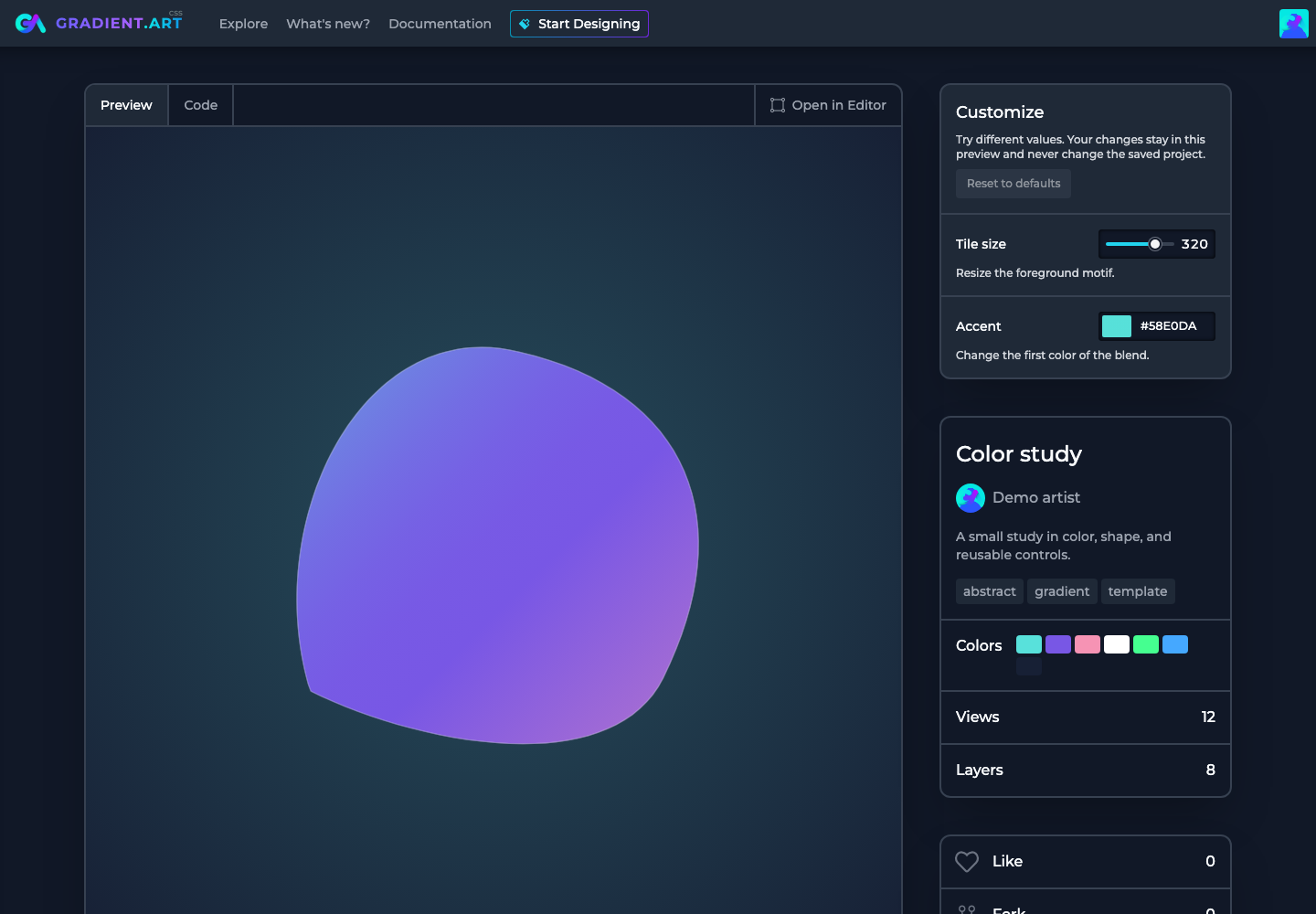
Preview values are temporary. In particular, Fork in Details View starts from the saved project, not these temporary overrides. To keep a variation, open the editor, set its variable values there, and Fork or Update as appropriate. See forking a project.
Edit and remove variables
Change a Number or Color directly in the Variables panel, or use Edit for its label, description, constraints, exposure, or Function expression. Renaming a variable updates references in saved formulas and keeps its direct bindings connected.
Edits are checked against dependent formulas and bound inputs. If a change would make them invalid, the editor reports the problem and keeps the previous accepted value. Adjust the constraints or dependent formula before trying again.
Deleting a directly bound variable removes those bindings and restores the inputs' stored static values. If another Function or input formula references it, deletion is blocked: update those formulas first. Removing a control is a design change, so use Update when you want that change saved.