Start with your selection
Properties follows your selection. Choose one layer in Layers to see its controls, or choose a folder for group transforms and filters. With nothing selected, there is nothing to edit.
If you selected several layers, Properties tells you how to move or rotate the selection. Click one row without Command or Ctrl to return to individual controls. This keeps a precise adjustment from accidentally affecting the whole composition.
Position and size
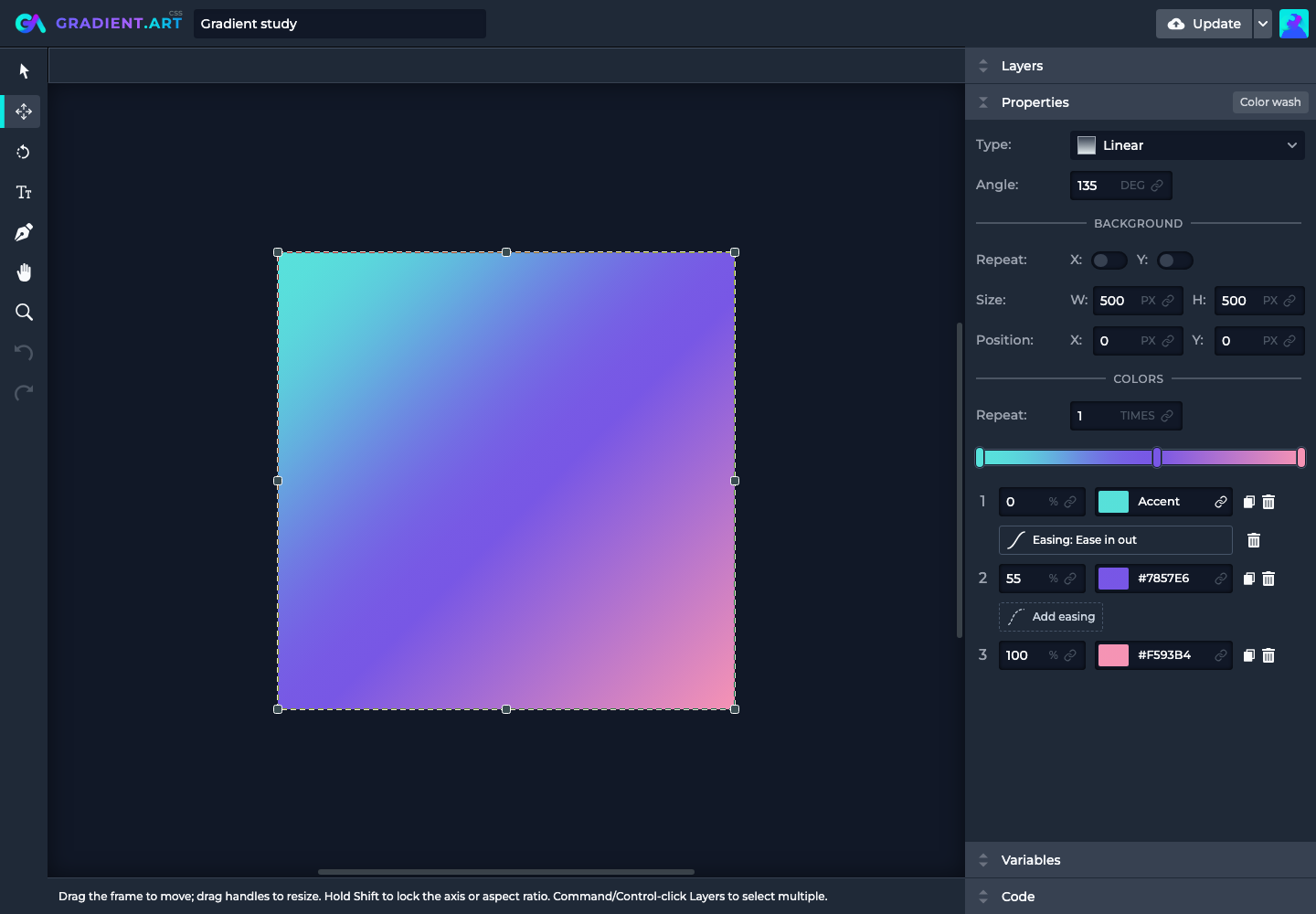
Under Background, Size W / H sets the layer's width and height in pixels. Position X / Y places its top-left corner in pixels: increasing X moves right; increasing Y moves down. Inside a transformed folder, these are local values before the parent transform.
A layer can be smaller than the canvas, extend outside it, or repeat across it. Changing its size doesn't change the project's canvas size. A zero width or height makes a layer disappear along that axis; give it a positive size to see it again.
Background position or gradient center
Radial and conic gradients also have Position X / Y near their gradient
settings. Those percentages move the gradient's center inside its layer:
50% / 50% is the middle.
To move the entire piece, use Background Position. To move a highlight within the piece, adjust the gradient center. These two controls solve different problems.
Tiling and repeat
The Background Repeat X / Y switches repeat the entire layer horizontally and vertically. Its width and height become the tile size. Set a small tile, turn on one or both axes, and adjust Position to offset the pattern.
Gradient Colors > Repeat repeats the sequence of colors inside the gradient instead. A repeating gradient and a repeated background can be combined, but they are not interchangeable. See color stops, easing, and repeat.
For seamless tiles, check the edges as well as the middle. A rotated pattern or an arbitrary tile size can make repeated layer boundaries visible.
Colors and transparency
Click a color swatch to open the picker. Choose a hue, adjust saturation and
brightness, or enter a color value. Alpha controls transparency: 0 is fully
transparent and 1 is fully opaque.
Read the field label before changing it. Fill colors the inside of a shape or text; Stroke colors its outline; a pattern's Background colors the space behind its marks; a gradient stop colors one point along a blend. Transparency reveals artwork below rather than painting white.
Changing a stroke color won't make it visible if Stroke width is still 0.
Canvas tools and precise values
Use Transform to drag a selected layer or folder and its frame handles to resize it. Hold Shift while moving to constrain the movement to one axis; hold Shift while resizing to keep its aspect ratio. Background fields reflect these visual changes.
Rotate exposes a dial when the selection supports rotation. A gradient angle rotates its color direction; a shape, text layer, pattern, or folder has its own rotation behavior. For a literal rotation of several different kinds of artwork, put them in a folder and rotate that group.
With several layers selected, use the tool bar's alignment and distribution controls. Select one item again to resize it or edit its individual values.
Type-specific properties
Not every layer has every control. A linear gradient has an angle; a radial gradient has a shape and center; a noise layer has frequency and seed. The gradient Type picker switches between linear, radial, and conic modes. To use an entirely different kind of artwork, add that layer type.
For each type's controls, see the layer type reference. For a selected folder, see Folders and filters.
Bind a property to a variable
Inputs that support variables have a small link button. Open it and select a compatible variable; the field shows the variable's label instead of an editable static number. Numeric inputs can also use a Formula.
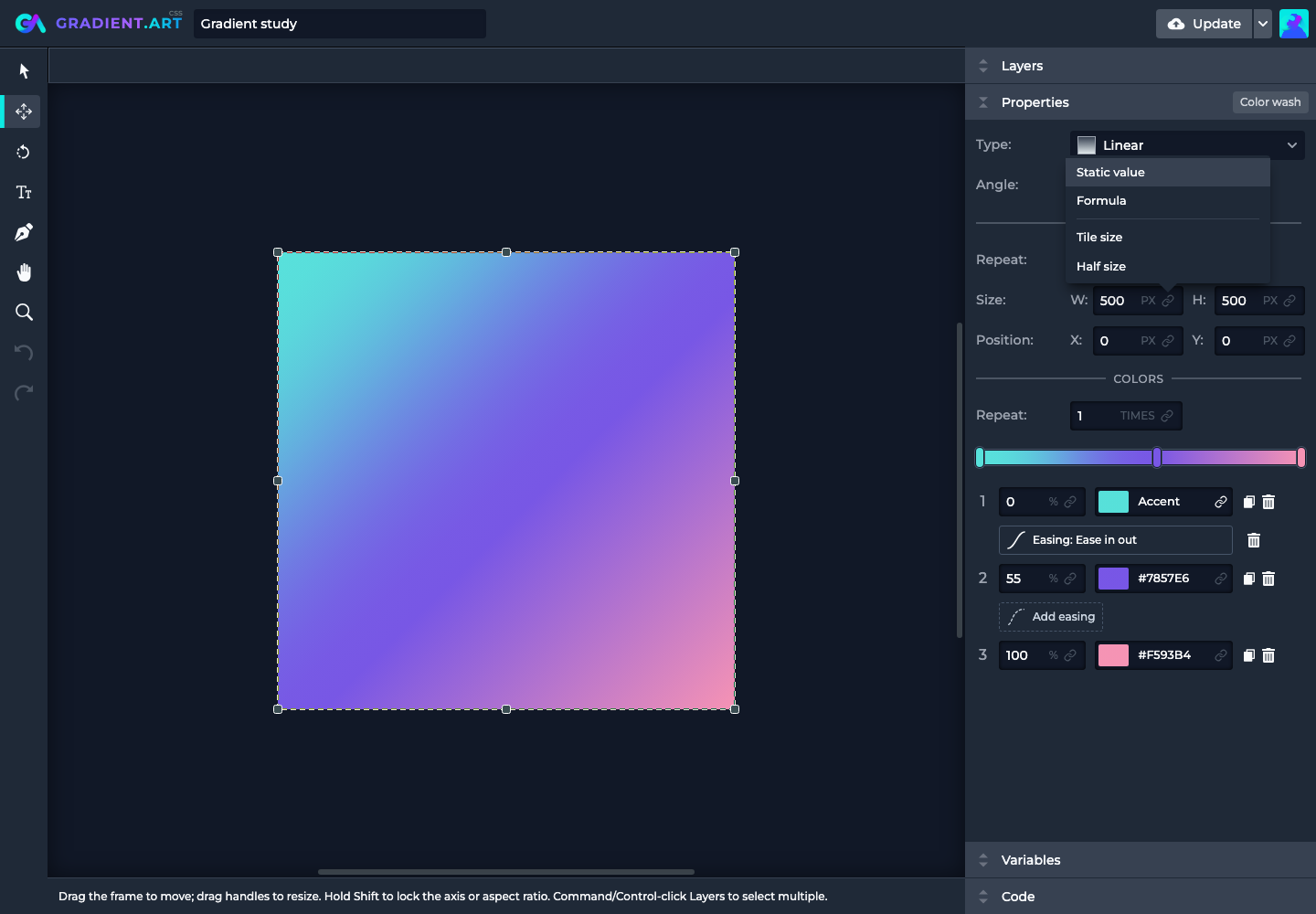
The property supplies the unit. A Number variable used for width means pixels; the same number used for an angle means degrees. Compatibility also checks the current value and the input's limits.
Choose Static value to remove a binding and restore that input's stored static value, not a frozen copy of the latest calculated result. See Variables and templates for a complete example.