Build one piece at a time
A design doesn't have to start complicated. Layers let you build it up from small, editable pieces: a background color, a gradient, a shape, or a bit of texture.
Keeping these pieces separate makes experimenting easier. You can change one part without rebuilding everything around it.
Try a solid color under a gradient. It's a small starting point with plenty of room to play with color and depth.
Layer types at a glance
Click Add a new layer at the bottom of Layers and choose a starting point:
- Solid color gives you a flat backdrop or a simple block of color.
- Gradient blends colors in a line, around a center, or around a circle.
- Noise adds fine grain or more turbulent detail.
- Pattern makes repeating dots, stripes, grids, or checkerboards.
- Shape gives you editable geometry, from a rectangle to a hand-drawn path.
- Texture creates paper grain, clouds, marble, or wood.
- Text brings editable words into the composition.
A folder is different: it contains layers and applies transforms and effects to the group. Add one with Add folder. A project can contain up to 60 items, including folders and their children.
For controls and ideas for each kind of artwork, use the layer type reference.
Pick a layer
Use the Layers panel to select the piece you want to work on. That selection connects the layer list to the controls in Properties and the tools on the canvas.
If a control doesn't seem to affect the part you expected, check the selected layer first. It's an easy detail to miss when a composition starts growing.
Give it a useful name
Names such as “Background” or “Highlight” describe what a layer does in your design. They're easier to find later than a list of nearly identical names.
Double-click the layer's name, or select it and use Rename selection. Press Enter to finish naming it.
Select several layers
Hold Command or Ctrl while clicking layers to add or remove them from the selection. A normal click returns to one selected item. The primary selection is the item the editor uses for focused layer actions; the other selected items remain highlighted.
Use Transform to move the selection together, or Rotate to turn it around the selection center. The tool bar offers alignment for multiple items and distribution when there are enough items to space out. Selecting both a folder and its child doesn't move that child twice.
Multi-selection isn't bulk property editing: select one item to change its Properties, resize it, rename it, duplicate it, or delete it.
Arrange the stack
Layer order changes how a composition looks. A layer near the top can cover something below it, while transparency lets parts of the underlying design show through.
Try moving a layer and watching the canvas. Sometimes the right color is already there; it just needs a different place in the stack.
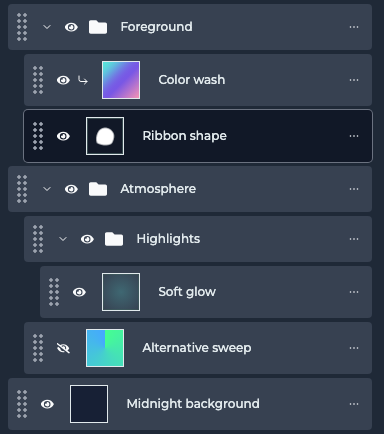
Drag the handle at the left of a row. The insertion marker shows whether it will land before, after, or inside another item. For a precise one-step change, open the row's Layer options menu and choose Move up or Move down.
Compare with visibility
Use the visibility control to compare your design with and without a layer. It's a quick way to decide whether a detail adds something, without deleting it.
Hiding a folder hides its children too. Expanding or collapsing a folder in the list only changes the list, not the artwork.
Duplicate and delete
Select one item and use Duplicate selection to make a variation. A duplicated folder includes its children. Copies keep their variable bindings: a shared color still controls both copies rather than becoming a new variable.
Use Delete selection to remove the selected item; deleting a folder removes its contents. Made the wrong call? Undo restores the change.
Give related layers a home
Folders keep related parts together. Instead of treating every small piece as a separate thing to manage, you can organize a composition into meaningful groups.
Start with a folder for a part of the artwork, such as a background or a foreground detail. Leave the more advanced nesting and filter combinations for when you need them.
Drop a layer over the middle of a folder row to put it inside. Use Move out of folder in Layer options to move it up one level. The folders and filters guide covers nested groups, keyboard alternatives, and group-wide effects.
Clipping masks
Clipping lets one layer supply the paint and another supply the silhouette. It's a handy way to give a shape or some text a gradient fill without changing its geometry.
- Add a Shape layer and choose the silhouette you want.
- Place a Gradient layer directly above it in the same folder or at the root. Make sure the gradient covers the shape.
- Open the gradient's Layer options and choose Create clipping mask.
The gradient now shows only where the base has opacity. The bent-arrow indicator identifies the clipped layer. To undo the relationship without deleting either piece, choose Release clipping mask.
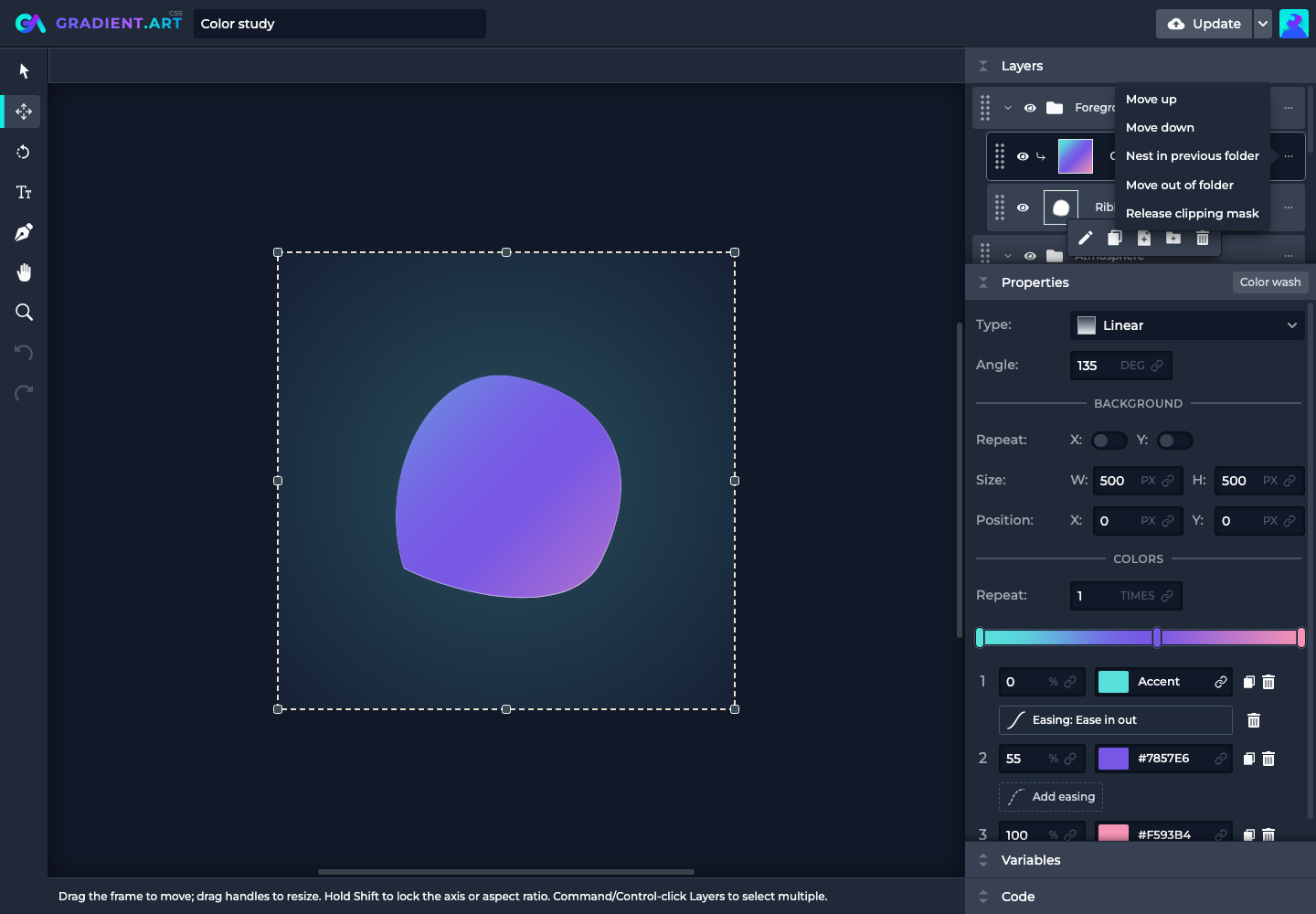
Supported bases are gradient, solid color, text, shape, and pattern layers. A folder, noise layer, or texture layer cannot be the base. You can clip a folder to a supported individual layer below it.
Several clipped siblings can share the next non-clipped base below them. They must stay in the same group. Moving or deleting the base can release invalid clipping, with a Clipping released message. Hiding a base does not silently switch the clipped layers to a different base.
Keep exploring
You now have the basic loop: add a piece, select it, adjust it, and see how it works with the rest of the design.
Open the editor to try it, or return to the workspace overview if you want another look around.