Give a group its own identity
Folders are more than tidy storage. They let you treat several layers as one piece: move a whole motif, soften a glow, or recolor a group without adjusting every child.
Click Add folder in Layers, give it a useful name, and move related layers inside. The chevron collapses the list; the visibility control hides the entire group. For the basics of selecting and naming items, see Working with layers.
Nest and move layers
Drag a layer's handle over the middle of a folder row to nest it. Drop between rows to reorder it. While dragging, Drop here to move to the root appears at the bottom of the tree.
The Layer options menu also provides Nest in previous folder and Move out of folder. The first action requires a folder immediately above the item; the second moves it up one level. With the row itself focused, Alt+Right and Alt+Left perform those actions, while Alt+Up and Alt+Down reorder it.
A child inherits its ancestors' transforms and filters. Moving it out of a folder therefore changes more than its indentation. Clipping also stays within a group: keep a clipped layer and its base together.
Transform the whole folder
Select the folder to find Transforms in Properties:
- Translate X / Y, in pixels, moves the group horizontally or vertically.
Both start at
0. - Rotate, in degrees, turns the group.
0is unchanged. - Scale X / Y stretches the group along each axis.
1is original size,0.5halves it, and a negative value flips that axis. - Skew X / Y, in degrees, slants the group.
0is unchanged; values must stay between-89and89.
These controls act on the group, not on the stored size and position of each child. Use them to place a finished motif while keeping its internal layout easy to edit.
Work with visible content bounds
The canvas frame follows the folder's visible contents. An empty or hidden group may have nothing useful to frame. Nested transforms build on their parents, so a child's local position is not necessarily its final position on the canvas.
A scale of 0 flattens an axis. If a tool asks you to restore the folder or
parent scale, set that axis back to a nonzero value in Properties. This is a
geometry limitation, not a lost layer.
Filters
Select a folder and scroll to Filters in Properties. These effects apply to the rendered group. Start with one adjustment, compare it with its neutral value, then add another if the composition needs it.
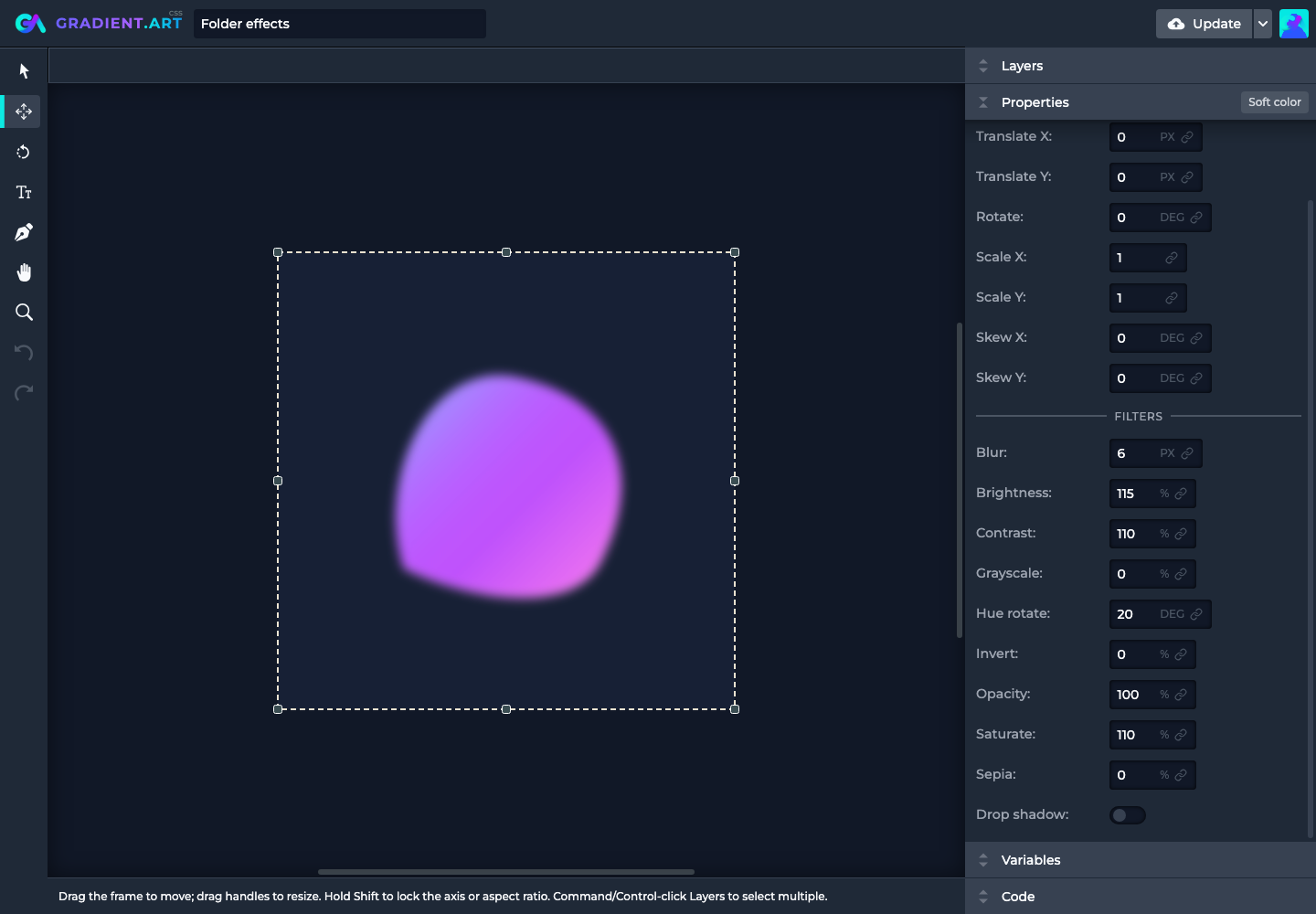
Blur
Blur uses pixels. 0px is sharp; a larger value softens edges and detail.
Try 6px on a group of colored shapes for a soft glow. Blur spreads beyond the
original edges, so leave space around the effect; the canvas boundary still
crops the final artwork.
Brightness
Brightness starts at 100%. Lower values darken the group; higher values
brighten it. 0% makes its visible color black without removing its alpha.
Try 115% for a gentle lift rather than recoloring each layer.
Contrast
Contrast starts at 100%. Increase it for stronger separation between light
and dark, or reduce it for a flatter look. 0% removes tonal contrast.
Try 125% on a textured group to bring out detail.
Grayscale
Grayscale runs from 0% (original color) to 100% (fully grayscale).
Try 40% when a colorful group competes with the focal point.
Hue rotate
Hue rotate shifts colors around the hue wheel. 0deg is unchanged;
360deg returns to the same hues. Try 90deg for a color variation without
moving the artwork. This has nothing to do with the folder's Rotate transform.
Invert
Invert runs from 0% (unchanged) to 100% (fully inverted).
Intermediate values mix the original and inverted colors. At 50%, color
channels converge toward gray, so use it deliberately rather than as a general
contrast adjustment.
Opacity
Opacity runs from 100% (normal) to 0% (transparent).
The children are composited together before the group fades, which differs
from lowering every child's alpha independently. Use 50% for a translucent
group; use the visibility control for a quick on/off comparison.
Saturate
Saturate starts at 100%. 0% removes color, and values above 100%
intensify it. A small increase, such as 120%, is often enough.
Sepia
Sepia runs from 0% (unchanged) to 100% (full sepia). A partial value
adds a warm, aged treatment without completely replacing the palette.
Drop shadow
Turn on Drop shadow to reveal Shadow X, Shadow Y, Shadow blur,
and Shadow color. Offsets and blur use pixels; the color includes alpha.
For a starting point, try X 0, Y 8, blur 12, and a partly transparent dark
color.
The shadow follows the group's alpha silhouette rather than drawing a box around its bounds. A fully filled rectangle still casts a rectangular shadow; a group of separated shapes casts their combined silhouette.
Combine effects and nested folders
A child folder's effects happen before the parent treats the result as part of its group. This is useful for a sharp foreground inside a softly blurred background composition: keep the foreground outside the blurred folder.
Filter controls use the editor's fixed order, not the order you changed their values. Use nested folders when an effect needs a separate scope. For example, soften a colored shape inside an inner folder, then add a shadow to the outer group.
Noise Opacity and Texture Contrast belong to their individual layers. Folder Opacity and Contrast affect all children together. Pick the scope that matches what you want to change.
Connect effects to variables
The link button next to numeric transforms and filters can bind a Number or Function variable. Shadow color can bind a Color variable. The Drop shadow on/off switch is not a variable input.
Try a Number variable called Softness with a minimum of 0, then bind it to
Blur in several folders. One control now tunes the whole design's softness.
Follow the variable binding guide
for setup and compatible ranges.