Save your first project
When your design is worth keeping, sign in and choose Save in the editor header. The project needs at least one layer or folder; an empty canvas cannot be saved.
After a successful save, the editor shows Gradient saved! and updates the URL
to /editor/ followed by the project's ID. Update replaces Save for your
saved project. Keep that URL or open Details View for a presentation link.
Editing is not autosaving. Save or Update before closing, refreshing, or navigating away. A canvas preview is not confirmation that the server has saved your changes.
Update your project
Open a project you own while signed in to see Update. Make your changes, then choose Update to save them to the same project URL. This includes layer edits, variables, and project metadata.
Wait for success feedback. If the editor reports an error, keep the page open, resolve the problem, and retry rather than assuming the save completed. Command+S on Mac or Ctrl+S elsewhere runs Save or Update when available.
Fork a project
Fork creates a separate project you own, leaving the source unchanged. Use it to build on someone else's design or preserve an alternate version of your own. You need to be signed in.
In the editor, Fork saves the current layers, document settings, and variables to a new project and changes the URL to that copy. The new version retains a connection to its original project. Future Update actions affect your copy.
Unlike Update, Fork is available for existing projects you don't own. You can experiment with their layers in the editor, then Fork when you want to keep your version.
Preview values and forks
The Customize controls in Details View are a temporary preview. Its Fork action uses the saved source data, not the values you just tried there.
To preserve a customized variation, choose Open in Editor, set the desired values in Variables, and Fork from the editor. If you already forked in Details View, open your copy, make those changes, and Update it. See Customize a preview for resetting and validating exposed values.
Details View
Choose Details View from a saved project's header. This opens /view/ plus
its ID: the page for looking at the finished artwork, sharing its URL, and
understanding how it was made.
The page includes a preview, a Code tab, author and project information, description, tags, colors, layers, and comments. Templates also show Customize controls. Open in Editor takes you back to the editing workspace.
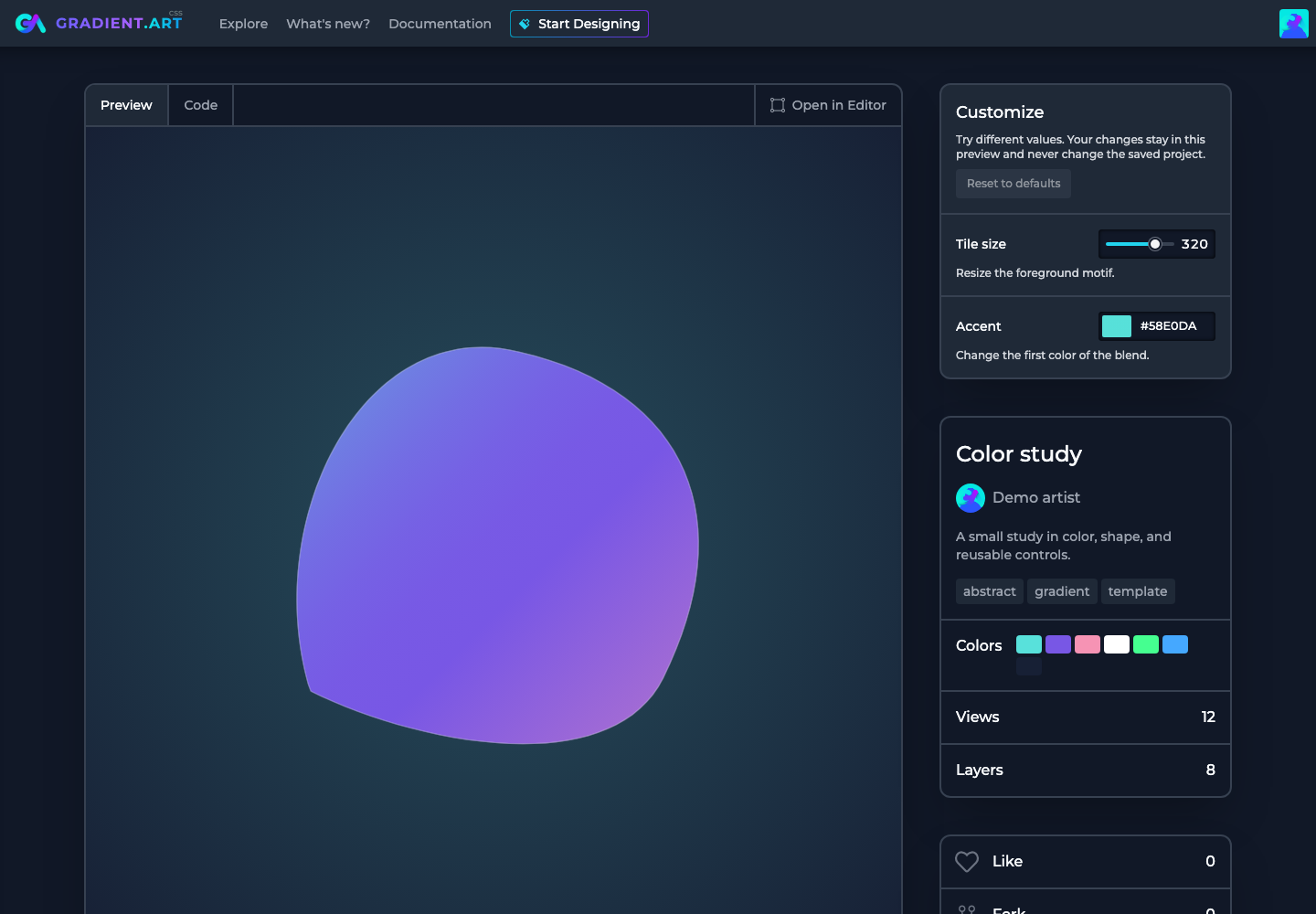
Details View loads the saved version. Unsaved editor changes will not appear there just because you opened it in another tab.
Full Screen View
Full Screen View opens /embed/ plus the saved project ID. It shows the
artwork without the editor controls or Details View's surrounding information.
It is a separate presentation route, not a command that resizes your canvas
or necessarily enters the browser's full-screen mode.
Use Details View when sharing context and customization controls. Use Full Screen View when the artwork itself should have the stage. Both reflect the saved project, so Update first if you want them to show your latest changes.
Project settings
Open Project actions (the arrow beside Save, Update, or Fork) in the editor header and choose Settings. It is available for a new project or a saved project you own. If you're working from someone else's design, Fork it before editing its project settings.
Changes apply immediately in the editor. Done closes the dialog; it does not save to the server. Use Save or Update afterward.
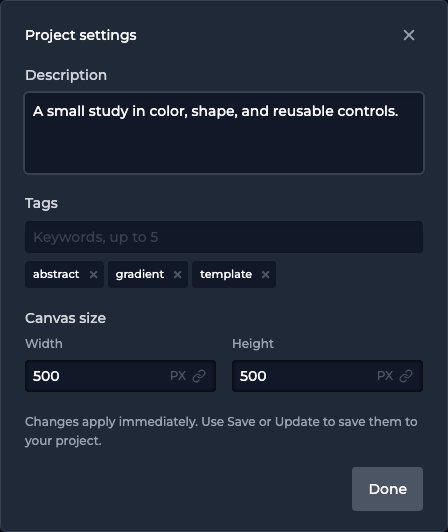
Project name, description, and tags
Edit the project name in the header, not in Settings. Keep it descriptive enough to recognize later; names can be up to 100 characters.
Settings contains Description (up to 300 characters) and Tags (up to five, 25 characters each). A short description can explain the visual idea or what a template's controls are good for. Tags help describe the design's subject or style.
These belong to the project. Your profile and sign-in preferences live in account settings instead.
Canvas size
Set Width and Height in pixels, each at least 1. These are the actual
artwork dimensions, not the size of your browser window.
Changing canvas size changes the area available to the composition; it doesn't automatically scale every layer proportionally. Check layer sizes, offsets, and repeat after resizing. A variable or formula can connect the dimensions to related layer properties when you want them to respond together.
Use the link button beside either dimension to bind a compatible Number, Function, or input formula. To make the canvas merely look larger while working, use zoom instead.
Start a new project
Choose New project in the header to start from a blank design. When the current project contains work, the editor asks for confirmation. Cancel that dialog if you still need to Save, Update, or Fork the current work.
Starting a new project does not delete a previously saved project, but it does leave the current editor state behind. Save what you want to keep first, then give the next idea a clean canvas.