Solid color
A solid layer is the simplest building block: one color, with optional transparency. Use it as a backdrop, a small accent, or a neutral base below translucent gradients.
Add Solid color, select its swatch, and choose a color and alpha. Size and position still matter: a small solid layer is a colored rectangle, not automatically a full-canvas background. The shared Background controls place and repeat it.
Gradients
Add Gradient, then use Type in Properties to choose linear, radial, or conic. All three use the same color-stop editor. The difference is how those colors travel through the layer.
Linear gradients
A linear gradient blends along a straight direction. Angle is in degrees:
0 points up, 90 right, 180 down, and 270 left.
Choose 90 for a left-to-right blend or 135 for a diagonal.
Try a dark blue stop at the start and a warm pink stop at the end. Change the angle before adding more colors; direction alone can change the whole mood.
Radial gradients
A radial gradient spreads outward from a center. Choose Circle for a round
falloff or Ellipse for one that adapts to the layer's proportions.
Position X / Y sets the center in percentages; 50 / 50 puts it in the middle.
For a glow, start with an opaque light color and end with that color at zero alpha. Move the center off to one side for a less symmetrical light source. Resize the layer to change the footprint of the effect.
Conic gradients
A conic gradient sweeps around a center, rather than away from it. Angle rotates the start of the sweep, and Position X / Y moves its center within the layer.
Use it for color wheels, wedges, or a rotating-light feel. Match the first and last stop colors for a continuous seam, or deliberately make them different for a visible edge.
Color stops, easing, and repeat
Click the gradient strip to add a color stop. Drag its marker or enter its percentage in the row below. Click its swatch to change color and alpha; the row's duplicate and trash controls copy or remove it. At least two color stops remain in a gradient. There can be up to 20 stops, including transition modifiers.
Stops close together make a quick transition; stops at the same position make a hard edge. A colorless hint adjusts the midpoint between neighboring colors. Hints and easing affect the transition only while they sit directly between two color stops.
Choose Add easing between neighboring colors to shape the blend. Open its
curve control and choose Linear, Ease, Ease in, Ease out, Ease in out, or Steps.
You can also drag the two curve handles or edit X1, Y1, X2, and Y2 for a custom
cubic curve. These coordinates run from 0 to 1.
Steps accepts a whole number from 2 to 128. For a smooth curve, more
steps produce a finer approximation and more generated CSS. With the Steps
preset, each step holds its color before jumping to the next.
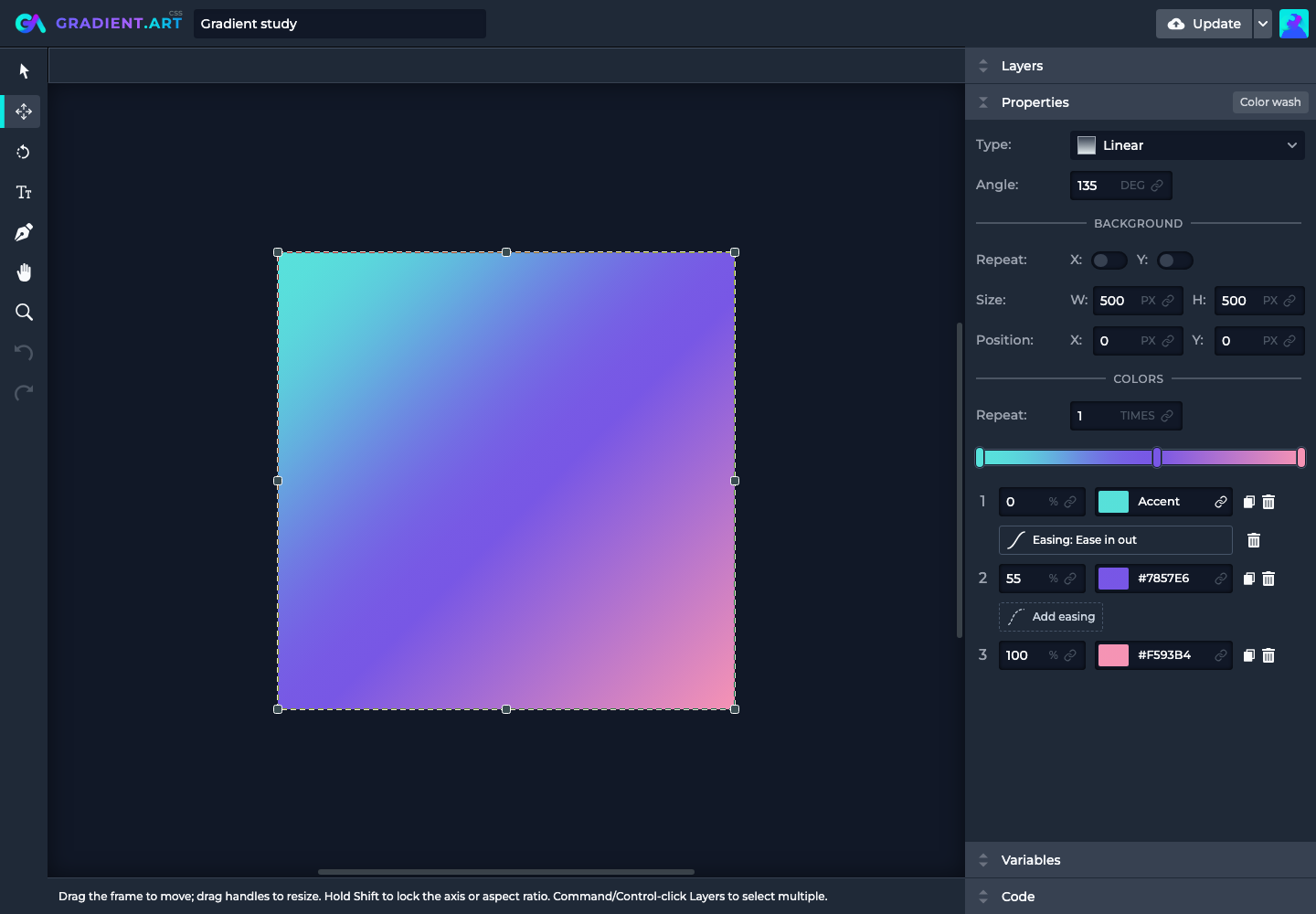
Colors > Repeat repeats the color sequence; 1 is a single cycle.
This is separate from Background Repeat, which repeats the whole layer.
Try a hard-edged two-color gradient with a higher color repeat for stripes,
then adjust Angle to turn them diagonally.
Noise
Noise gives a clean composition a little surface detail. Choose Fractal noise for softer variation or Turbulence for a more ridged result.
- Color mode keeps the generated color channels; Monochrome removes their color; Tint uses the chosen tint color and its alpha.
- Frequency (
0to1) controls detail density. Higher values create finer grain; lower values create broader variation. - Octaves (
1to8) adds levels of detail. More isn't always better, especially for a subtle overlay. - Seed chooses a repeatable noise field. Keep it fixed while tuning other settings, then change it when you want a different arrangement.
- Contrast (
0to4) controls the strength of tonal variation, with1as the default. - Opacity (
0to1) fades this noise layer, not the layers beneath it.
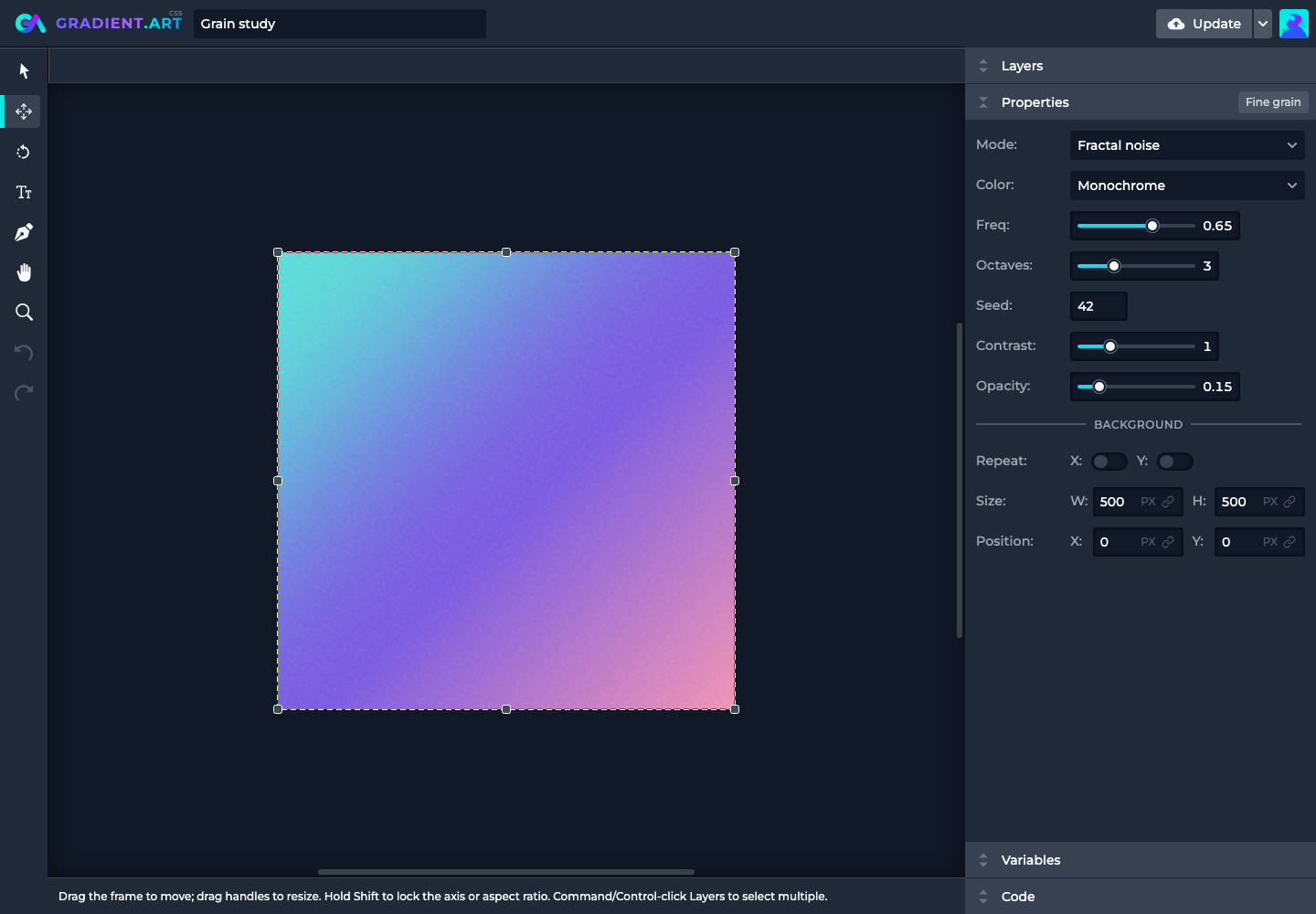
For a starting point, place monochrome noise above a gradient with Frequency
0.65, Octaves 3, Seed 42, and Opacity 0.15. Increase the opacity only
until you can feel the texture.
Patterns
Patterns repeat marks inside the layer. Choose Dots, Stripes, Grid, or Checkerboard, then tune the rhythm:
- Spacing changes the distance between marks or the checker size.
- Dot size changes dot diameter; Thickness changes line width for stripes and grids. Checkerboard doesn't use either control.
- Rotation turns the internal pattern.
- Foreground colors the marks; Background colors the space behind them. A transparent background lets lower layers show through.
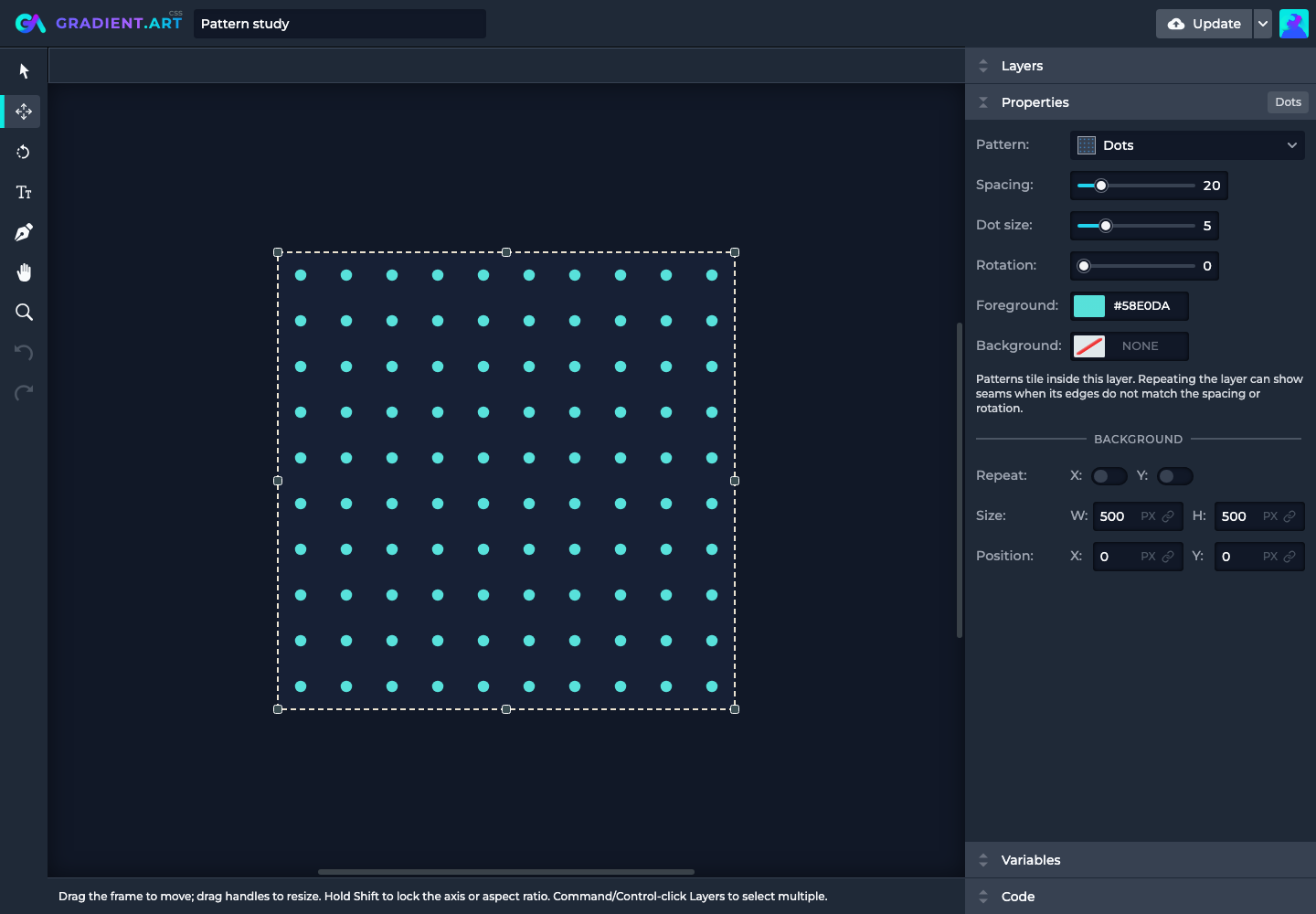
The pattern uses a normalized 200-by-200 drawing area, scaled to your layer. Its spacing values are not a promise of one screen pixel per unit. Resize the layer to scale its appearance, or change Spacing to fit more marks within it.
Internal repetition fills the layer; Background Repeat tiles the complete layer. A rotated pattern or mismatched tile boundary can reveal seams in that second kind of repetition. Check a few neighboring tiles before calling it finished.
Shapes
Start with Rectangle, Ellipse, Polygon, Star, or Custom shape.
Set Fill, Stroke, Stroke width, and Rotation for the overall look.
A stroke width of 0 hides the outline.
Rectangles have Corners for rounding. Polygons have Sides (3 to 32).
Stars have Points (3 to 32) and Inner radius: a smaller inner radius
makes deeper notches. Ellipses need no extra preset geometry.
These shapes use a normalized 200-by-200 space, then stretch into the layer's Background Size. Unequal width and height turn a circle into an oval.
Draw and edit paths
Select a shape and choose Path tool to edit its geometry. With a different kind of layer selected, the tool creates a new shape instead.
When drawing, click to place a straight vertex or click and drag to create curve handles. Click the first vertex after adding at least three vertices to close the path. New subpath starts another path in the same shape.
Switch to Select vertices, then drag empty space to draw a selection box. Hold Shift to add vertices. Drag selected vertices together, or select one to adjust its incoming and outgoing handles. Hold Shift while dragging a handle to mirror the other handle.
Double-click an edge or use Add vertex to insert a point. Use Remove vertex or Delete to remove the selection. Make curve adds handles; Make corner removes them. Open path, Close path, and Continue path change whether you are editing a closed silhouette or continuing an open line.
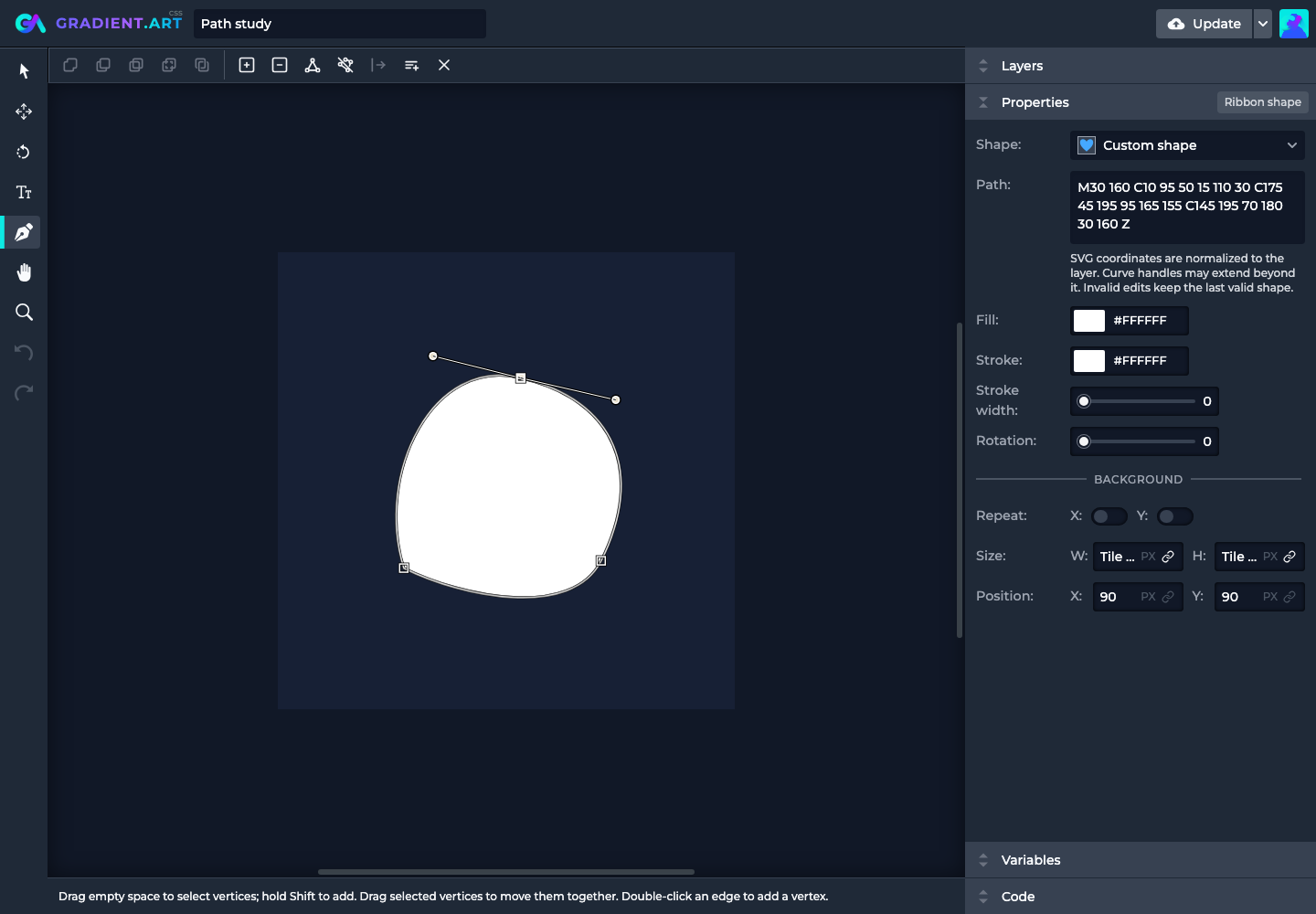
Arrow keys nudge selected vertices or a focused handle; Shift increases the nudge. Undo and Redo operate within the current path draft. Press Enter or switch tools to commit a valid edit. Escape first leaves drawing mode; from selection mode it exits the tool and commits. Cancel discards the draft. There is no separate Done button for paths.
Combine and arrange paths
Select vertices from at least two closed paths to enable joining:
- Unite combines their filled areas.
- Subtract cuts the other selected paths out of the first selected path.
- Intersect keeps only their shared area.
- Exclude removes the overlapping areas.
Selection order matters for Subtract; the control's tooltip identifies the first selected path. Clicking the active joining operation again turns it off. Merge turns the selected result into editable geometry; Undo restores the originals. Without an active join, Merge uses Unite.
With several vertices selected, the top bar also offers alignment and distribution. These arrange vertices within a shape, not separate layers.
Custom SVG paths
Choose Custom shape to edit Path directly. Enter SVG path geometry, not an
entire <svg> document. For example, this makes a triangle:
M100 15 L185 185 L15 185 Z
Endpoints must stay within 0 to 200 on both axes. Curve handles may extend
beyond that area. Paths are limited to 128 commands and 4,096 characters.
Invalid edits show a message and keep the last valid shape on the canvas, so
fix the highlighted input rather than assuming the preview accepted it.
Textures
Textures package procedural detail into four starting points: Paper grain, Clouds, Marble, and Wood. Choose a preset, then make it yours.
Scale changes the size of the features. Distortion bends the result and is available for clouds, marble, and wood, but not paper. Contrast changes tonal separation. Seed picks a repeatable arrangement. Foreground and background colors map the texture to your palette, including transparency. Switching presets also resets those two colors to the preset palette.
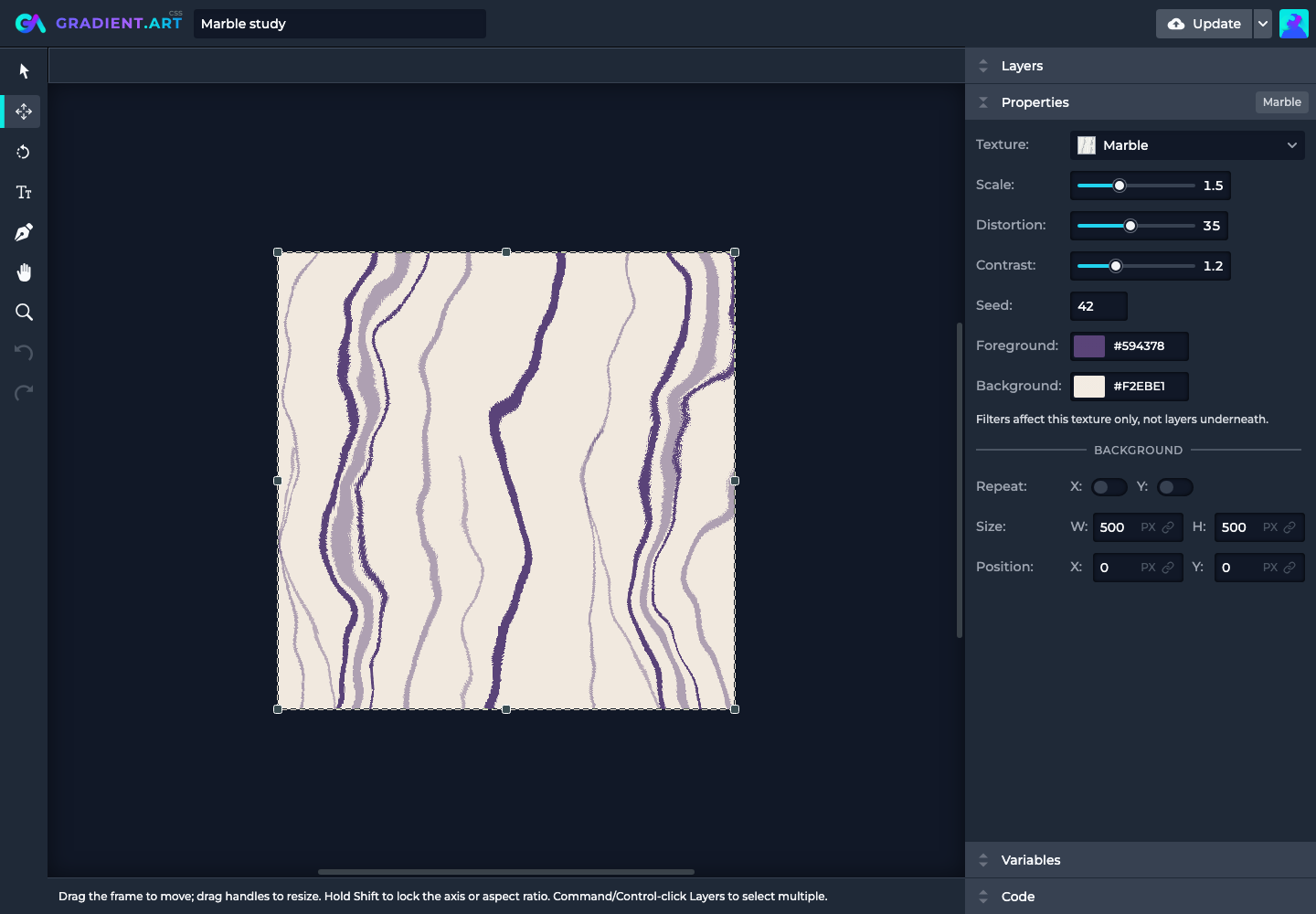
Try Marble with Scale 1.5, Distortion 35, Contrast 1.2, and Seed 42.
These settings affect only this texture. Use
folder filters when several layers need the
same treatment.
Text
Add Text, or choose Text tool with no text layer selected to create one. Select an existing text layer first if you want to edit it rather than add another.
Type in the canvas editor or in Text under Properties. Enter adds a line. Done, Escape, or Command/Ctrl+Enter finishes canvas editing; Escape does not cancel changes already applied. Use Undo if you want to restore earlier text. Text supports up to 500 characters and eight lines.
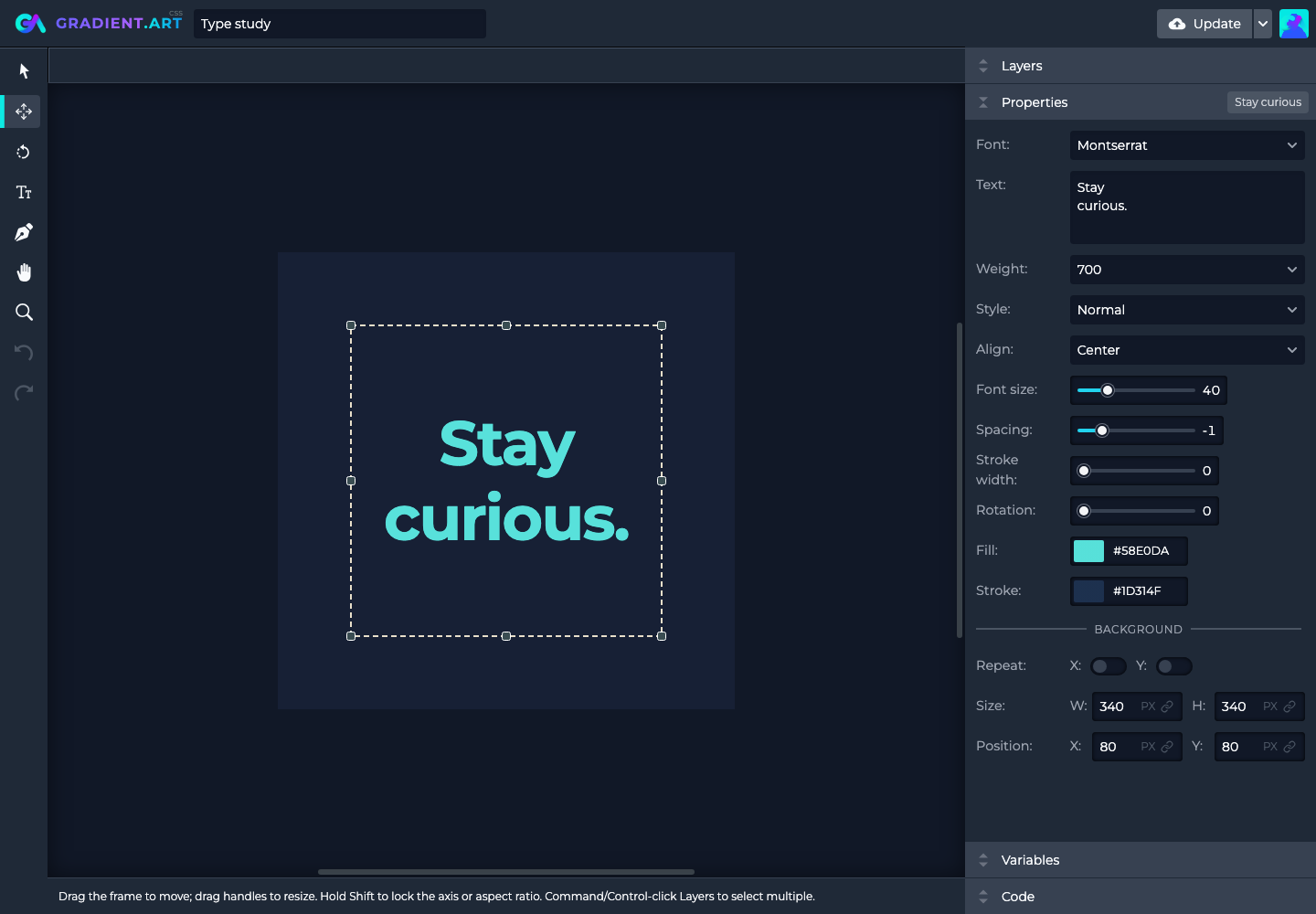
Typography and appearance
Montserrat is the built-in starting font. The searchable Font picker offers Google fonts; available weights and normal or italic styles depend on the selected family.
Font size sets the size inside the normalized layer, while Background Size scales the whole text layer. Spacing changes letter spacing. Alignment positions each line left, center, or right. Fill, stroke, stroke width, and rotation control the final appearance.
Font selection may need a moment to load and validate. The preview keeps the last valid text while that happens; use Retry if the editor reports a loading error. Don't assume a fallback font is the final result.
Text artwork uses inline SVG and font resources, not just a CSS background. When using generated artwork outside the editor, keep its font requirements with its markup so the type doesn't silently change.
Combine layer types
For a soft-lit backdrop, combine a dark solid base, an off-center radial glow, and low-opacity monochrome noise. For a graphic badge, clip a gradient to a shape and place text above it. For a textured wordmark, clip a texture layer to a text base.
Start with a small stack and change one thing at a time. Most of the character comes from the relationship between layers, not from the number of controls you use. Revisit layer ordering and clipping masks when the pieces look right separately but not together.